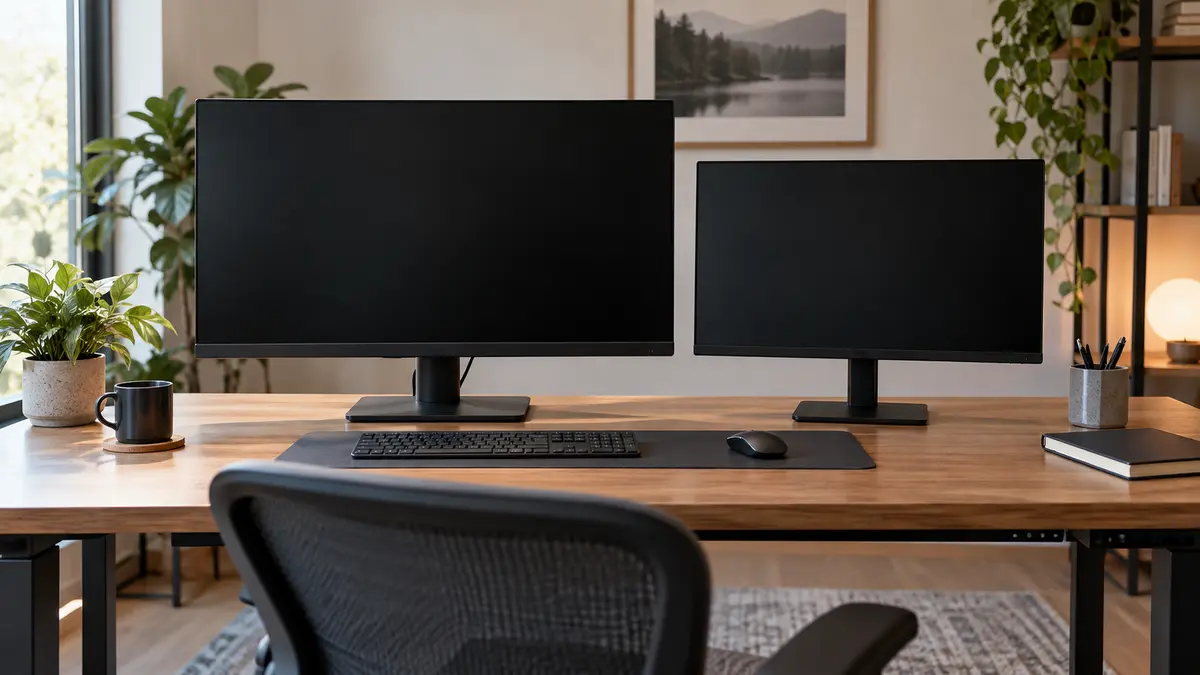
Monitor size is measured diagonally, which hides how much bigger the screen actually gets.
A 32-inch monitor is not a 27-inch monitor with five cute bonus inches. It is noticeably wider and taller, and whether that feels useful or ridiculous depends on your desk depth, resolution and the work you do.
Three very common monitor combinations
Resolution, viewing distance and stand adjustment matter along with diagonal size.
24-inch 1080p is still perfectly useful
For email, office work, a smaller desk or a secondary display, 24 inches at 1080p can be a very sensible setup.
Text is readable at normal distances, the monitor does not dominate the room and your computer does not need to push a huge number of pixels.
27-inch 1440p is a sweet spot for a lot of desks
You get noticeably more workspace and sharper text than 1080p without the scaling questions that come with very high-resolution displays.
For office work, coding, general gaming and mixed use, this is the size-resolution pair I would investigate first.
32-inch 4K gives you space, but it wants a deeper desk
A 32-inch 4K display can look fantastic and show a lot of information.
If it sits too close, though, you may spend the day turning your head to find controls at the corners.
Measure eye-to-screen distance before buying the giant monitor because it looked impressive in a store with twenty feet of open space behind it.
Resolution and size belong together
As the screen gets larger, keeping the same resolution spreads those pixels over more area.
That is why 1080p can look fine at 24 inches and noticeably coarse at much larger sizes when viewed up close.
Higher resolution gives you finer detail, but operating-system scaling may enlarge text and controls so they remain comfortable to read.
Scaling is not wasted resolution
Some people look at a 4K display set to 150% scaling and think they are “not using” all the resolution.
You are. Text and interface elements can be the same physical size while being drawn with more pixels, which makes them look sharper.
IPS, VA and OLED have different strengths
IPS is a strong general choice for color consistency and viewing angles.
VA often provides stronger contrast than ordinary IPS, with tradeoffs in motion behavior depending on the panel.
OLED delivers excellent black levels and fast response, but cost, brightness behavior and long-term image retention deserve consideration for static desktop use.
Refresh rate is not just for competitive gaming
Scrolling and pointer movement look smoother at 120 or 144 Hz than at 60 Hz.
You do not need it to write email, but once you are used to a high-refresh display, the difference is easy to see.
Make sure the computer, cable and port can actually drive the desired resolution at the desired refresh rate.
The stand is part of the monitor
Height adjustment is much more useful than a dramatic gaming-shaped base.
OSHA recommends positioning the monitor so you can view it without awkward head and neck posture. OSHA monitor guidance is here.
If the included stand is poor, check VESA mounting compatibility before assuming a monitor arm will save you.
Map the screen on your desk
Use painter’s tape or cardboard to mark the actual width and height.
Then sit where you normally work. Look toward the corners. Check whether the screen blocks a window or speaker. Make sure the stand leaves room for the keyboard.
If desk depth becomes the problem, our desk-depth guide covers that tradeoff.
The right monitor is big enough to show what you need and small enough that the whole screen still feels like one workspace instead of a wall.
Shop by the criteria that matter
Amazon results change. Check each listing against the criteria in this guide.